As I become increasingly experienced in the classroom, one thing has become clear: digital technology is an essential in my classroom.
Last year, I became an Apple Coach – and that made a huge difference to my pedagogy and how I speak to the staff that I’m coaching. This year, I’m continuing to implement iPads in our classroom to help learners to do even better than they have done before.
I’ve already given you 6 digital strategies that I’ve tried out in my own classroom, so why not 5 more that have succeeded in powering up my learners? Who knows; they might power up yours, too.
I’m starting with 3 digital strategies first and ending with a couple of regular time-saving techniques, so scroll straight to the bottom if that takes your fancy first.

Podcasting sensations
No, please, don’t click away: turn your students into podcasters. iPads should be about letting learners do things that were never possible before, and podcasting is a great example of that. Obviously you’re not going to ask them to upload their work to Spotify and ask for sponsorships from NordVPN, but you can use this format to check learning in a really fun and interesting way.
One activity we’ve historically had for our year 9s is where they summarise the assassination of the Archduke Franz Ferdinand – a catalyst for World War One – as a newspaper report.
If you’re always getting them to do newspaper reports, things are going to get real stale real quick. My Apple Learning Coaching journey spoke about the importance of mixing up tasks for our learners – and one method I’ve found great success with is getting them to use the app GarageBand for podcasting.
Students work together to produce a script to summarise whatever it is that they’ve been learning about, open up the app and produce a podcast. It isn’t necessary that you listen to these back, as you’ll be able to check their learning in-the-moment, and help anyone who’s struggling, as is your usual job.
To setup this learning task, it’s easy:
- Open Garageband
- Click the microphone
- Get recording
That it.

You could do things like adding in fades or theme music, but it’s really not relevant to the actual learning to do so.
Garageband can look quite scary, because learning might appear less structured than before, but it’s well worth trying out at least once.
Self-marking knowledge checks
We need to know whether students have ‘got it’, but should that mean spending hours of our lives printing, distributing and marking interleaving knowledge checks?
No. Absolutely not. That would be a really bad example of time management in teaching.
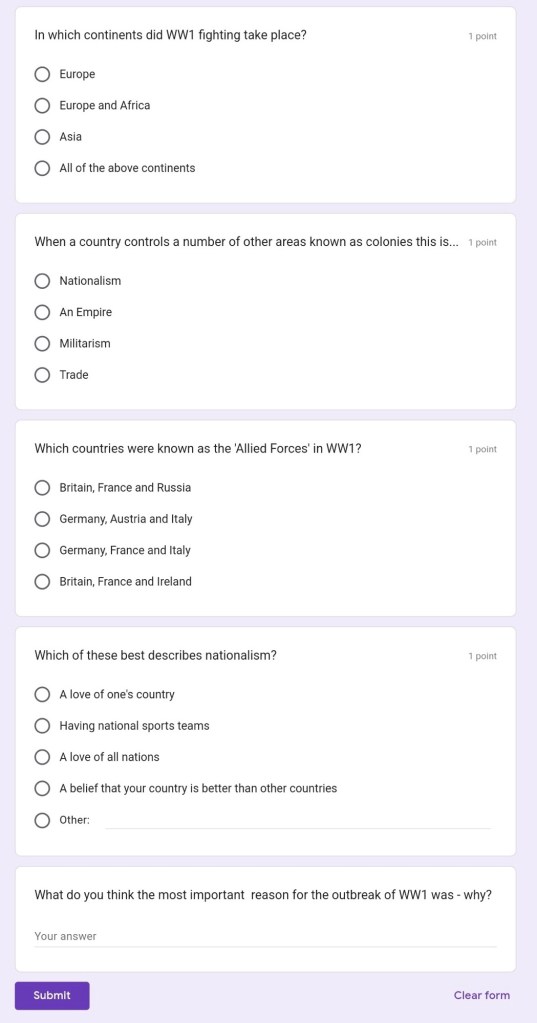
Use Google Forms with multiple choice options that offer feedback for learners instantly. We use these as starters at the start of every lesson, so that students come in knowing exactly what they need to do. They have 8 minutes to complete a Google Form, which allows us to take the register and check which questions they couldn’t answer – and to then quickly reteach it so that they know what’s what before continuing with the lesson.
Even better is using these for end-of-unit knowledge tests, since those can sometimes be up to thirty questions long. Don’t get me wrong: these aren’t perfect, since some students could simply guess the correct answer – but they could do these with physical questionnaires too – so why not digitise the format and speed up the process?
Verbal to written
Text-to-speech converts anything somebody says into written words. All you need to do is tap the microphone button on the digital keyboard. This won’t appear on every app, so I use this on Google Docs.
Some of my learners are great at speaking an answer, but can’t work out how to get that written down onto the page. Text-to-speech allows them to use the microphone on their iPads to transform their thoughts into full sentences.

Now, don’t panic: I don’t use this all the time, since it has the potential for chaos, but it can be a real confidence boost for some. What I might do to begin with is have them turn and talk about a prompt on the board, such as ‘Why did William win the Battle of Hastings?’ Then we’ll share our ideas and create a model paragraph together.
Then, I’ll leave them with sentence starters to use to formulate their answers. They can use their voice to fill in the blanks, which they’ll have already formulated with their partner – reducing cognitive load in the learning process.
Now that they can see a paragraph that they have created written down, they might feel more comfortable writing a third paragraph completely independently.
Key Stage 3 marksheets
I can type at 110 words per minute. I certainly can’t write 110 words per minute by hand – so why would I give feedback to students by hand? I use marking sheets wherever possible.
If my year 10s have written an 8-mark question that needs marking, then obviously I’m not going to bother printing out a mark sheet, as it doesn’t require 3-step marking (which consists of a What Went Well, Even Better If, and a personalised Next Step).
However, if my year 7s have done a formal end-of-term assessment, which will usually result in some pretty similar looking feedback for all, such as ‘you need more specific evidence’, it makes sense that I shouldn’t write these out again and again, right?
All of my relevant WWWs and EBIs are printed and ready to be highlighted on a mark sheet that’s specific to the question that has been asked. There’s also room to add in other comments if none of the ready-made ones apply. I then write out a personalised Next Step as always. Following this method has saved me hours of time, especially compared to when I first started teaching in 2019.
Marksheets for exam groups – the big one
You can use as many strategies as you want with KS3 groups, but the majority of your marking time will be spent with your exam groups. Here’s how my feedback slips look:
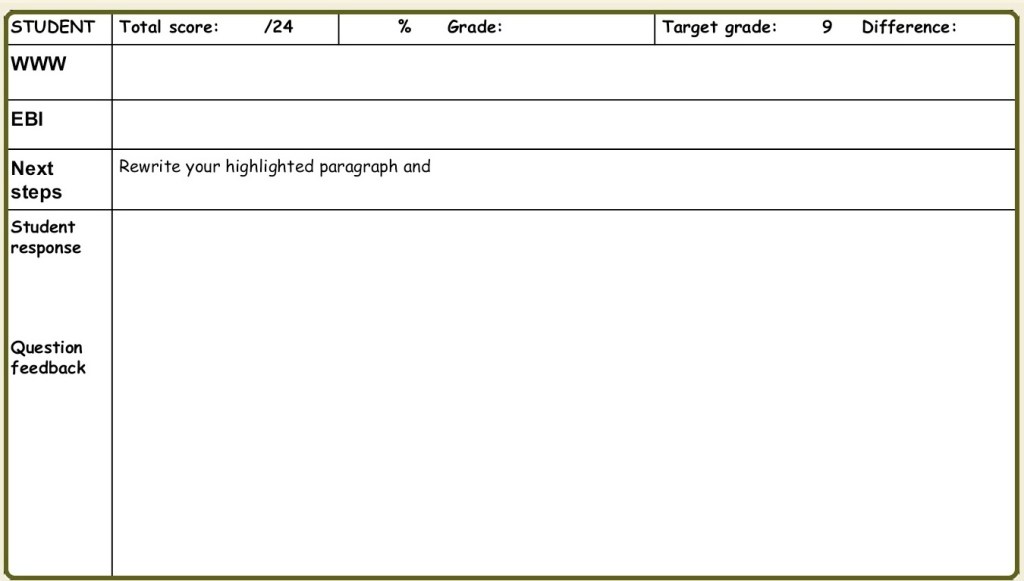
I include the student’s name, their target grade and their actual grade for their assessment, as well as the difference between these two, their mark and percentage. Following this method is great for keeping learners actively engaged with how they’re doing and the gaps that they need to close.
I also type out their specific WWW, EBI and a Next Step. These are all personalised, but once again are so much quicker to jot down than doing it by hand. They also have a box for acting on their feedback, keeping everything neatly confined to one place.
The mark sheet that I use at KS5 is a little different. They have a spot for WWW, EBI and Next Steps, as usual – but I’ve skipped the box for their target grade, since I tend to use these marksheets a lot more frequently for separate essay practice – which is how they’re graded in their exam – rather than for full assessments, which is when they get used during my KS4 feedback. I’d rather they focus more on formative feedback to improve, rather than how far they may have been from their target grade. However, when they complete full assessments or mock exams, they get the full shebang, to keep them on track and aware of their progress.

Those are some of my key strategies. If you were after one that’s more student-wellbeing and pastoral focused, click here to read about an app that students can use to self-regulate their emotions. Turns out, it’s pretty useful for adults too.
What strategies do you use in the classroom? I’d love it if you could share them in the comments below.
- Reclaim your evenings: A Busy Teacher’s Guide to Healthy Meal prep
- 16 incredible books to read in 2026
- How to actually achieve your goals in 2026: The Anti-Resolution toolkit
- The First 90 Days: How to survive (and thrive) as a new Head of History
- 7 Brutal Questions to Course-Correct your Life before 2026
 Hardly Hamilton
One thought on “5 more strategies for your classroom”