Ever since I started as an NQT (now called ECT1), I’ve been privileged enough to have a device to use at my school. Every single teacher was given an iPad to use from September 2020, and getting one was simply exhilarating.
I felt like it was a sign-on bonus from a private company.
Slowly, iPads were rolled out to students, too. Bit by bit, we’ve learned to use these devices a little better in the classroom. What started out as a gimmick for some has become a real lever for change, allowing students to access information online and reducing the need for printing, as well as more groundbreaking stuff, such as totally transforming their learning tasks.
As a school, I think we’re really starting to nail our iPad strategy. Now, every student from years 7-11 has access to a device, and teachers are free to implement them however they feel is fit for their lessons.
A couple of years ago, I trialled the use of iPads as a Digital Exercise Book, working with the Docs add-on Magic Exercise Book. I conducted a research project as part of a Masters in Teaching Studies with the University of Birmingham to really understand whether this method would improve outcomes for year 7 History students.
If you’re familiar with academic research, you can probably guess the outcome: further research required. Since then, I’ve continued to become more and more adept at using iPads as part of my regular pedagogy. I’ve even become an Apple Coach to help other teachers use them effectively.
With all of that being said, by September 2024, I was noticing that my device had significantly slowed down. Much like the personal iPad that I replaced earlier in the year with an iPad Air 6, my work iPad was showing its age and limitations. It was 2019’s iPad 7, capped at 32gb of storage and noticeably slow.
Using it had become a chore.
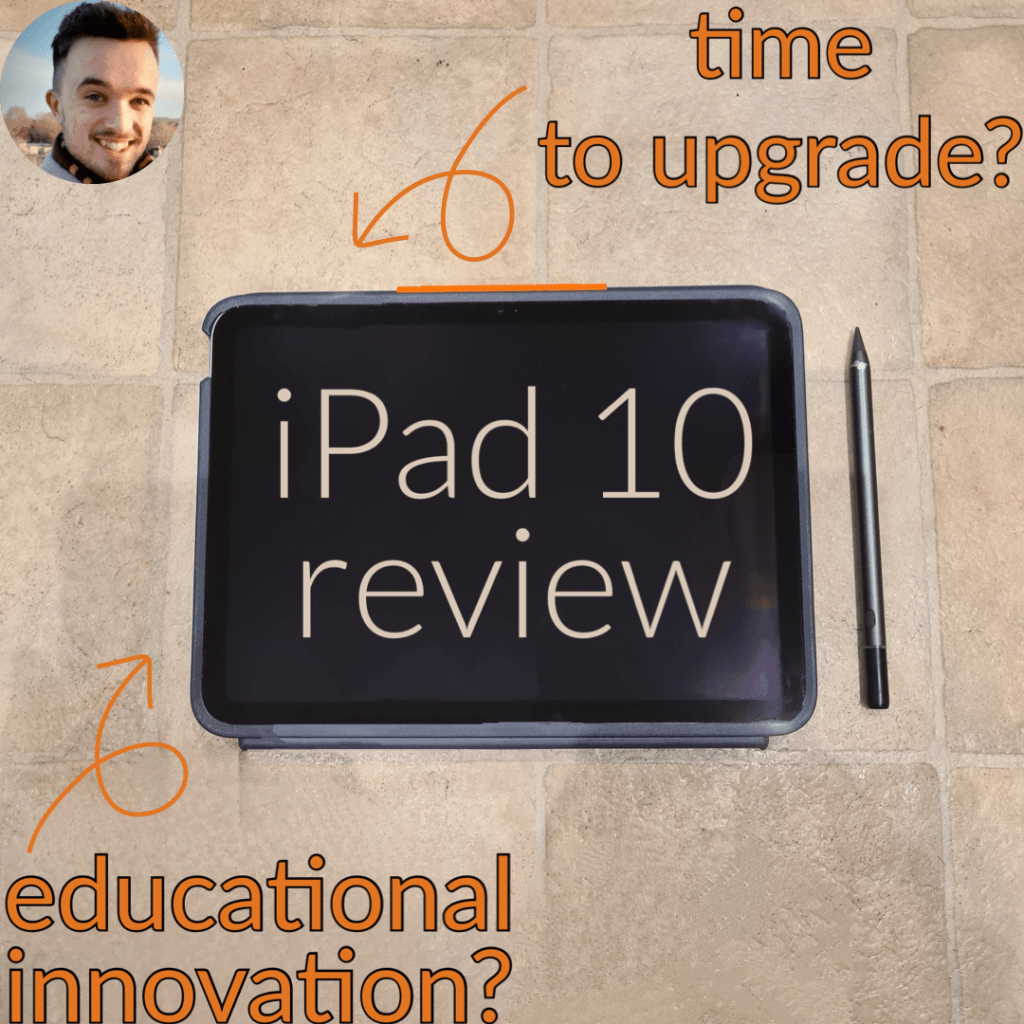
Thankfully, my IT department happily upgraded my device to the latest and greatest iPad 10, from 2022, which is a huge improvement on the old device. Now that I’ve been using it for around a month, I need to share my thoughts to other digital educators. In the meantime, you can pick one up for yourself from this link.* It’s a lot more affordable than the iPad Air 6, which you can get from here.*
Unlike my review of the iPad Air 6, I’ve tailored this review specifically for educators. It’ll still hit up all the usual features, but it’s mainly focused on how useful the device is in the classroom compared to its predecessors. If you’re simply looking to upgrade your personal device, check out this post to find out which type to go for.
These are my thoughts on the iPad 10 for education.
The Camera
I always seem to start by talking about the camera, and it looks like I’ll be continuing that trend here.
As a productivity device for working, where I’m expected to attend some online meetings, the fact that the camera has now moved to the long side of the device makes the biggest difference. Now I’m no longer needing to look off to one side while presenting.
Plus, the quality of both cameras has been upgraded: things look a lot crisper than they did before. Don’t get me wrong: it’s still not as good as the camera on my Samsung Galaxy S20, which is four years old, but it’s a massive boost nonetheless.
Not only is this nice for remote meetings, but it’s great for taking pictures of objects or information that I need to upload to the Google Classroom. In the past, I was having to take pictures using my phone and email them to myself, which was a faff. Now, I can snap a picture using the camera and upload it instantly. Even better is that the kids can actually read what I’ve put online for them this time, which is a little trickier if I ever opted for my old work device.
The speed
As well as the camera, the speed of the device is of a far better standard. On my old device, Google Slides had become unusable if I wanted to do any kind of work on it. I’d be trying to produce a resource but any words that I typed would appear a good few seconds after I’d typed them.
I appreciate that I can type really fast, but this was painful.
Slides now works without any issue, though I’m yet to test very large file sizes, so watch this space. The device seems to cope a lot better when it comes to opening apps and holding your place on them for when you multitask and swap to another programme. This is especially useful when I’m trying to scroll through a mark scheme, calculate grades using percentages and displaying grade boundaries all at the same time.
Speaking of speed, the new USB-C cable it supports allows for much faster charging than before. This usually wouldn’t bother me, since I’d default to charging my work device overnight, but it’s a nice bonus.
Finally, I’ve become speedier whilst using it in part from the increased storage size. No longer am I having to remove certain apps while prioritising others. It’s not a huge increase; I wouldn’t choose 64gb if it were for personal uses, but having twice the storage than before has made it so simple to have my entire digital library loaded.
The digital classroom
As a school, we’ve put together a host of processes to work with Google’s suite of apps. We use Slides, Docs and Classroom most predominantly, with a Google Form serving as a self-marking starter for spaced repetition of prior learning every lesson (click here to read about why we do this). I’ve also taken a liking to Apple’s own Freeform app, since it functions as a huge digital whiteboard to stop and jot all of my ideas for planning in my own time, or for showing to the kids.
Speaking of that, the iPad 10 works beautifully when casting your display, whether that’s via Apple TV or a third-party app. I do often cast my Google Slides to the projector lesson, but this is far from being every lesson, since desktop is still slightly easier to navigate. What I’ve found works really well is sitting at the back of a classroom, opening Google Docs while casting, and modelling or feeding back ideas from the students in my classroom. Was this still possible using my old device? Absolutely, it was just a lot slower.
I’ve actually put together some of my favourite digital techniques to conduct in the classroom, which you can read about here:
The teaching champion
I also like to conduct active observation, which is a method that I first learned from Denarius Frazier, of Teach Like a Champion fame, when he attended one of our training days. Active observation is where you don’t just circulate a classroom, but you also purposefully look over a student’s shoulder, see what they’ve got, and make a note of it to remind yourself to question them on it later, to develop their ideas. It’s a little like using a Second Brain in the classroom.
Frazier uses a clipboard to record his ideas, but that’s not for me. Digital first, please. I jot down observations on my iPad – not just because I prefer having one piece of equipment for everything, but also because it feels less intimidating for my students. They’re used to seeing me with my iPad; it’s like an extension of my left arm. If they saw me carrying a clipboard around the classroom, they’d feel like they’re under some kind of mad pressures to perform.
The verdict
If you’re not using an iPad in the classroom, I’d highly recommend that you start – whether that’s by bringing in your own or convincing leadership that it’s time to invest. There is no better place to start than with the iPad 10: it’s the most affordable, budget-friendly device that’ll do everything you need and more to power up your pedagogy.*
As well as all of the benefits that you’ll experience from using a device while teaching, it’s also just incredibly handy to have something powerful yet lightweight to work from any desk in the school. For my work iPad, I’ve been using the Logitech Rugged Combo keyboard, and it works great – but it’s a very different beast to the one I’ve got on my personal keyboard. For an in-depth review of the newest addition to my keyboard lineup, watch this space; for now, you can compare keyboards at lots of different prices and purposes by reading this post.
Do you already use an iPad in your classroom, or are you thinking of getting one? Or are you totally anti-technology-enhanced teaching? Let me know all of your comments, good or bad, in the comments below.
*Any posts marked with an asterisk are affiliate links and may generate a small kickback to me at no extra cost to you.
If you liked that, you’ll love…
- Reclaim your evenings: A Busy Teacher’s Guide to Healthy Meal prep
- 16 incredible books to read in 2026
- How to actually achieve your goals in 2026: The Anti-Resolution toolkit
- The First 90 Days: How to survive (and thrive) as a new Head of History
- 7 Brutal Questions to Course-Correct your Life before 2026
While you’re here, why not follow my socials?
 Hardly Hamilton
3 thoughts on “iPad 10 review: education innovator?”