You’ve mastered Docs. You can navigate Drive blindfolded. You use Sheets for more than just a register, and you’re a Slides wizard. You even know all the best tricks for Classroom. So, what’s next on your journey to becoming a teaching pro with G Suite?
It’s the tool you probably use for quick polls or parent contact forms: Google Forms.
Forms isn’t just for booking appointments or collecting lunch orders. It’s a powerful, sleek engine for assessment and instant data analysis. If you’re still relying on paper quizzes, you’re missing out on hours of your life that you could be spending on things that actually matter. When I first started teaching, I remember long nights around assessment week of marking the same paper forms over and over again.
Google Forms have made those nights a thing of the past.
Let’s dive into the pro-level features of Google Forms that can transform your teaching life, giving you the scope to use your time on what matters most: preparing and delivering exceptional lessons.
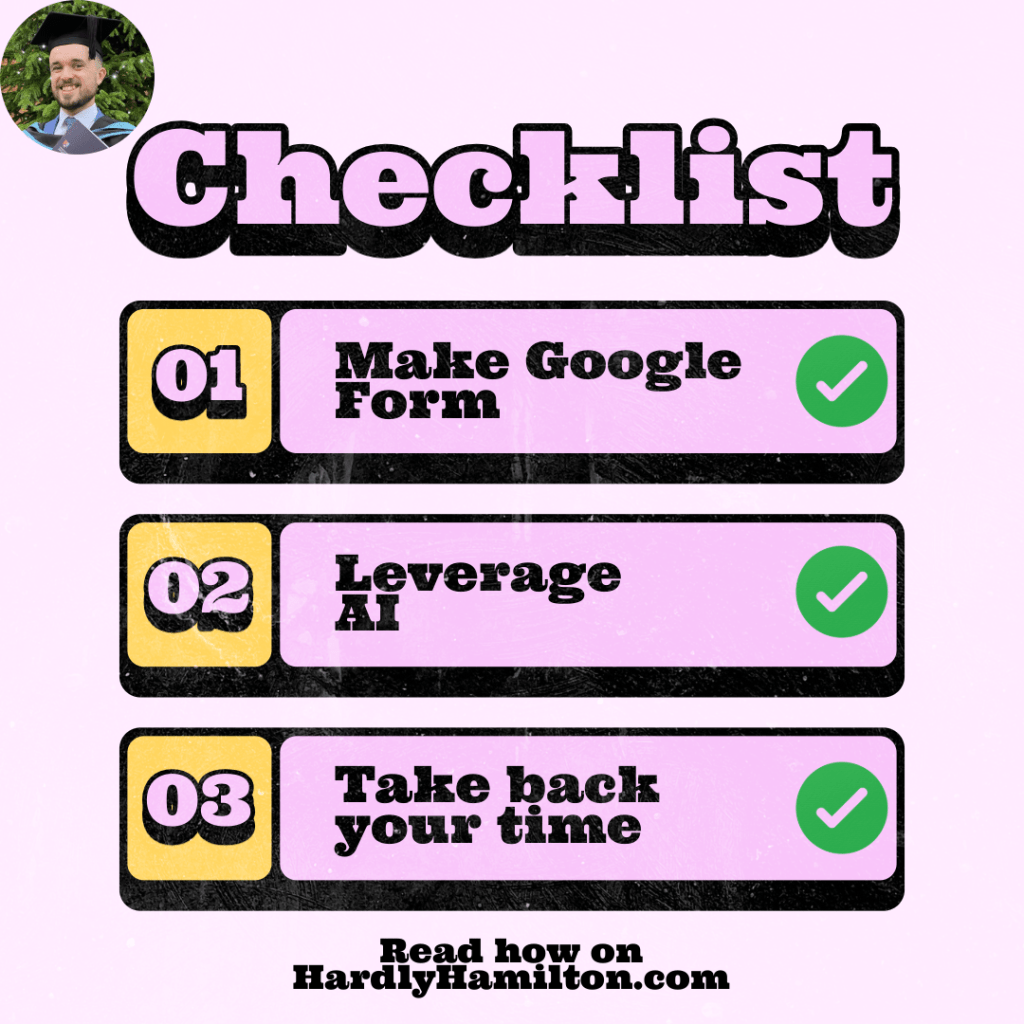
Forms Features That Make You a Pro
The beauty of Forms lies in its simplicity. You don’t have to over-engineer anything; the best features are right there, waiting to be used.
1. Go Beyond the Quiz Button
Every teacher knows you can turn a Form into a Quiz and get auto-marking for multiple-choice questions. It’s a huge time-saver. But a real pro knows how to make that quiz adaptive:
- Section and Branching Logic: This is your secret weapon for differentiation. Based on a student’s answer, you can send them to a specific section. Get Question 1 right? Skip to Question 5. Get it wrong? Send them to a remediation section with a quick video recap and a follow-up question. No more wasting time on content they’ve already mastered.
- Response Validation: Ever had a student write “IDK” when you asked for a number? Use response validation to set rules. You can force an answer to be a number, a specific text length, or even match a regular expression. It ensures you get the clean data you need, which you can use for analysis later down the line if you need to.
2. The Data Powerhouse
The best part of Forms is that it does the data analysis for you. When you’re done collecting responses, don’t just look at the summary graphs (though they’re great for a quick glance). Export the raw data into a Google Sheet.
Why? Because you can instantly calculate averages, filter by class group, or color-code student scores. This is where you move from just collecting data to actually using it to drive your instruction.
The AI Assistant: Brisk AI and Gemini
Now for the real gem. These innovations will save you hundreds of hours each day, helping you to finish work faster and either clock off at a reasonable hour, or to spend more time on your deep-work tasks.
Brisk AI: The Seamless Integrator
If you want speed and zero friction, look into the Brisk AI Chrome extension. It’s the ultimate time-saver, built specifically for teachers.
Brisk works inside your existing G Suite workflow. If you have a lesson plan or a key reading passage open in a Google Doc or Slides file, you can prompt the Brisk extension to instantly generate a multiple-choice quiz based on the content. No new app to learn. No faffing about. It’s AI-enhanced teaching that’s ready to go.
You can even tailor it to the specific reading age of your students, meaning that the same quiz would look totally different for those in Year 7 or Year 13.
Gemini: Your Custom Co-Planner
This is where you bring the big guns. You have long-term plans that map out your entire unit, but probably spend so much time converting those plans into assessment questions.
Here’s where Google’s Gemini comes in. Think of it as your dedicated co-planner. You can share your long-term plan (even complex files like PDFs) with Gemini by using the “Add files” feature. This gives the model maximum clarity on the scope and types of questions you need. Just ensure that this fits with your school’s parameters on data protection, as you’ll need to ensure that the version of Gemini that you’re working with is a dedicated, internal version which keeps your data local. This will prevent it from being shared with the public version of Gemini for training purposes.
Your prompt is simple: “Using these long-term plans, create 15 high-quality, multiple-choice questions with four answer options to assess student understanding of [Unit/Topic].” By using the long-term plan, you’re giving Google insight into what their learning will move onto, helping with interleaving and spaced repetition.
Gemini will generate high-quality, context-specific questions. All you have to do is copy and paste them directly into your Google Form, set the answer key, and you’re done. You’ve just created a rigorous, standards-aligned quiz in minutes, not hours.
Remember to ensure that you rigorously check through any AI-produced or edited resources. At the end of the day, the program should be there to assist, not takeover, from the classroom teacher.
Side note: you can use other services, like ChatGPT, for this but, again, make sure it fits with your school’s data protection policies.
Call to action
Your definition of success in teaching is going to change over time, but one constant is your need to reclaim time. Using Forms like a pro—and leveraging AI assistants to do the heavy lifting—is how you start winning back that time.
Carve out ten minutes right now. Open a blank Google Form, install Brisk, or prompt Gemini with your latest lesson plan. Tell me in the comments below: What’s the first question you’re going to have the robots write for you? Why are you testing that material instead of something else?
If you liked that, you’ll love…
- Reclaim your evenings: A Busy Teacher’s Guide to Healthy Meal prep
- 16 incredible books to read in 2026
- How to actually achieve your goals in 2026: The Anti-Resolution toolkit
- The First 90 Days: How to survive (and thrive) as a new Head of History
- 7 Brutal Questions to Course-Correct your Life before 2026
Follow my socials!
 Hardly Hamilton